SSH hardening that actually survives the first week
Default SSH on a fresh cloud Ubuntu image is basically a welcome mat for scanners. Port 22 open to the world, password authentication still enabled if you didn’t kill it in the first thirty minutes, root allowed, no rate limiting. Within hours the auth.log fills with failed attempts. Most of those attempts are noisy and unsuccessful, but the volume alone is enough to make real log analysis painful, and every once in a while someone gets lucky or you leave a temporary password hanging around.
I still have a screenshot from an early project where a single box accumulated more than 40 000 failed login attempts in the first 48 hours. None succeeded, but the log volume made it impossible to spot a real problem when one finally appeared. That is the practical reason I care about fail2ban and a non-default port more than about theoretical hardening checklists.
The hardening that actually lasts past the first week is not a single magic setting. It is a small stack that stays coherent when you later change the listening port, add users, or rebuild the box from a snapshot. I have broken every one of these pieces at least once, so the order below is the one that has survived production for me.
Kill password auth and root passwords first (if you haven’t already)
If you followed the previous “first 30 minutes” notes, PasswordAuthentication is already off and root can only use keys. If not, do that before anything else. Changing the port or installing fail2ban while password logins are still possible is just rearranging deck chairs.
Confirm the current state:
sshd -T | grep -E 'passwordauthentication|permitrootlogin|port '
# Expect:
# passwordauthentication no
# permitrootlogin prohibit-password   (or no)
# port 22
If passwordauthentication still shows yes, stop and fix the first-30-minutes steps. Everything that follows assumes keys are the only way in.
fail2ban: the part that actually reduces noise
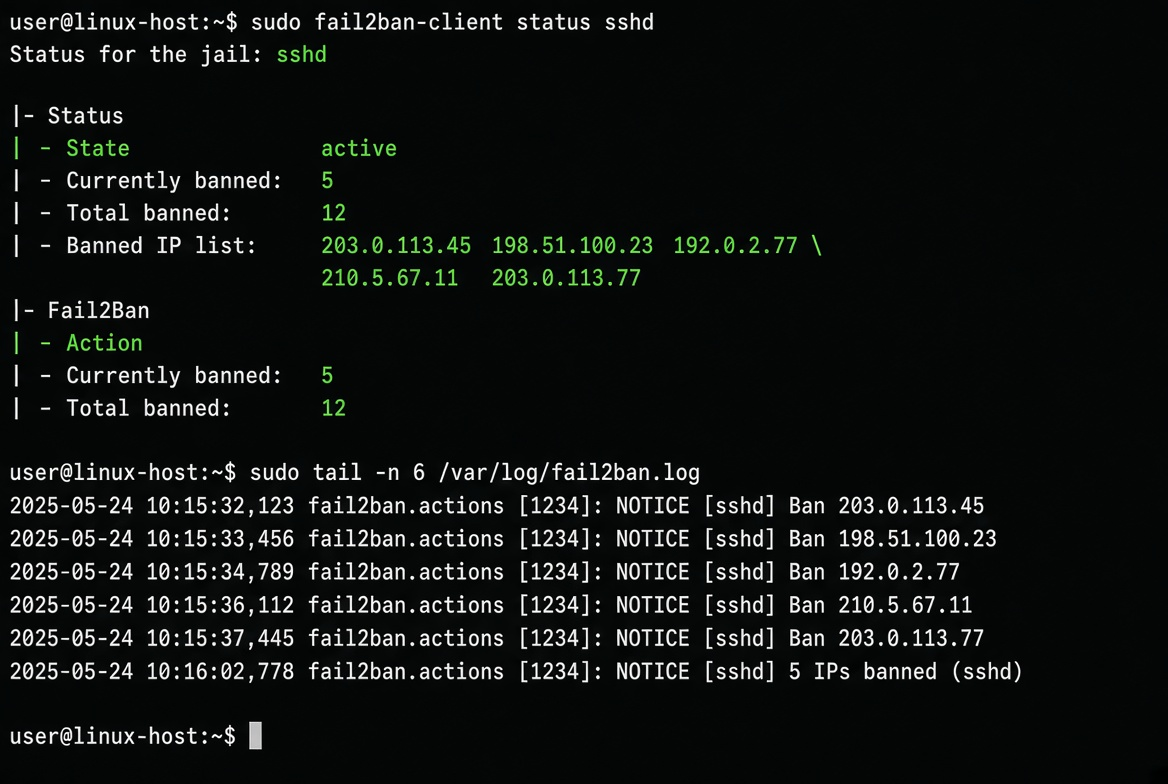
fail2ban is not a security boundary by itself. It is a log watcher that adds temporary iptables/nftables rules. On a public SSH port it dramatically cuts the volume of failed attempts that reach sshd, which makes the remaining logs useful again.
apt-get update -qq
apt-get install -y fail2ban

# Drop a local override so package upgrades do not wipe your settings
cat <<'EOF' > /etc/fail2ban/jail.d/sshd.local
[sshd]
enabled = true
port    = ssh
filter  = sshd
logpath = /var/log/auth.log
maxretry = 4
findtime = 10m
bantime  = 1h
ignoreip = 127.0.0.1/8 ::1 203.0.113.0/24
# Add your office or home ranges to ignoreip so you never ban yourself
EOF

systemctl enable --now fail2ban
fail2ban-client status sshd
The ignoreip line is the one people forget. I once banned my own laptop for an hour because I had typed the wrong key passphrase three times while tired. After that I always put the current management CIDR in ignoreip before enabling the jail. On multi-region fleets I keep a small shared text file of management ranges and paste the relevant ones; it is low-tech and has prevented more self-bans than any fancy automation.
Check that bans are actually happening after a few minutes of background noise:
fail2ban-client status sshd
# Look for "Currently banned" and the IP list
tail -20 /var/log/fail2ban.log
If the jail shows zero bans after an hour on a public IP, something is wrong with the filter or the log path. On Ubuntu 24.04 the default auth.log path is still correct; on some minimal images you may need to point at journald instead, but for standard cloud images the above works.
Changing the SSH port without locking yourself out
Moving off 22 reduces the automated noise a lot, but it is also the step that most often strands people. The safe sequence is:
- Open the new port in the cloud security group / network ACL first.
- Open the new port in ufw (or whatever host firewall you use).
- Change the Port directive and reload (not restart) sshd while you still have a working session.
- Test a new connection on the new port.
- Only then close the old port in the security group and ufw.
# 1. Cloud console: add inbound TCP 2222 from your management IP only.
#    Leave 22 open for now.

# 2. Host firewall
ufw allow 2222/tcp comment 'SSH new'
ufw status

# 3. sshd config – use a drop-in so the main file stays clean
cat <<'EOF' > /etc/ssh/sshd_config.d/50-port.conf
Port 2222
# Keep 22 temporarily if you want a fallback during testing
# Port 22
EOF

sshd -t && systemctl reload ssh

# 4. From your laptop, in a new terminal:
# ssh -p 2222 deploy@YOUR_IP
Only after the new connection works do you remove the old port from the security group and from ufw:
ufw delete allow OpenSSH
# or ufw delete allow 22/tcp
ufw status
A quick visual check of the listening sockets after the reload helps catch typos in the Port line:
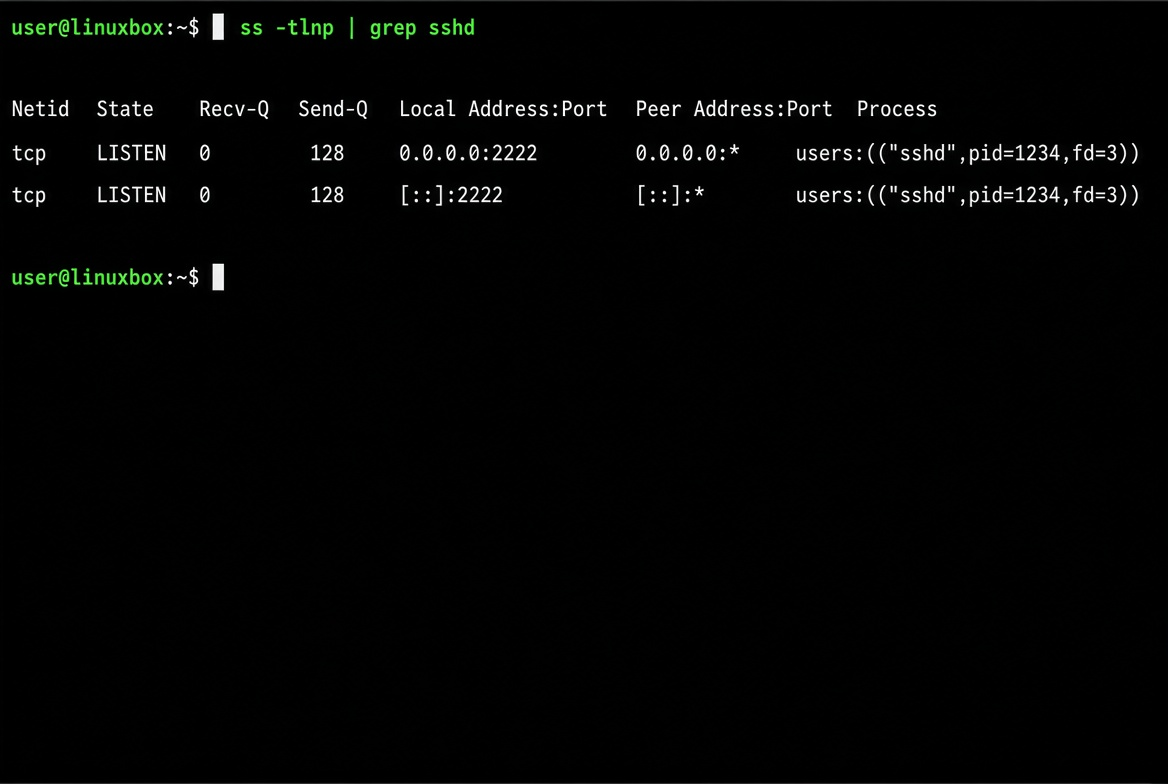
If you skip the security-group step and only change the host, the packets never arrive and you spend twenty minutes wondering why the new port is “closed”. If you close the old port before testing the new one, you are locked out until you use the provider’s serial console or rebuild. I have done both. The serial console is slower than just leaving the old port open for five extra minutes while you test.
I still keep a second, already-authenticated root session open during this whole process. reload is safer than restart, but habits die hard.
AllowUsers / AllowGroups – the quiet killer of “I gave the intern a key”
Once keys are required, the next common failure mode is “someone’s old key still works months later”. AllowUsers (or AllowGroups) turns that into an explicit allow-list.
cat <<'EOF' > /etc/ssh/sshd_config.d/60-allowusers.conf
AllowUsers deploy admin
# Or use a group:
# AllowGroups ssh-users
EOF

sshd -t && systemctl reload ssh
Create the group and add people only when you intend them to have access:
groupadd ssh-users
usermod -aG ssh-users deploy
# later: usermod -aG ssh-users newhire
This is especially useful on jump hosts or shared bastions. It also makes key cleanup easier: remove the user from the group and the key stops working even if the authorized_keys file is still present. I have seen more than one “ghost” access path where a former contractor’s key still worked because nobody cleaned authorized_keys and there was no AllowUsers restriction.
A minimal coherent set that has lasted
Putting the pieces together, the drop-ins I actually leave on long-lived boxes look like this:
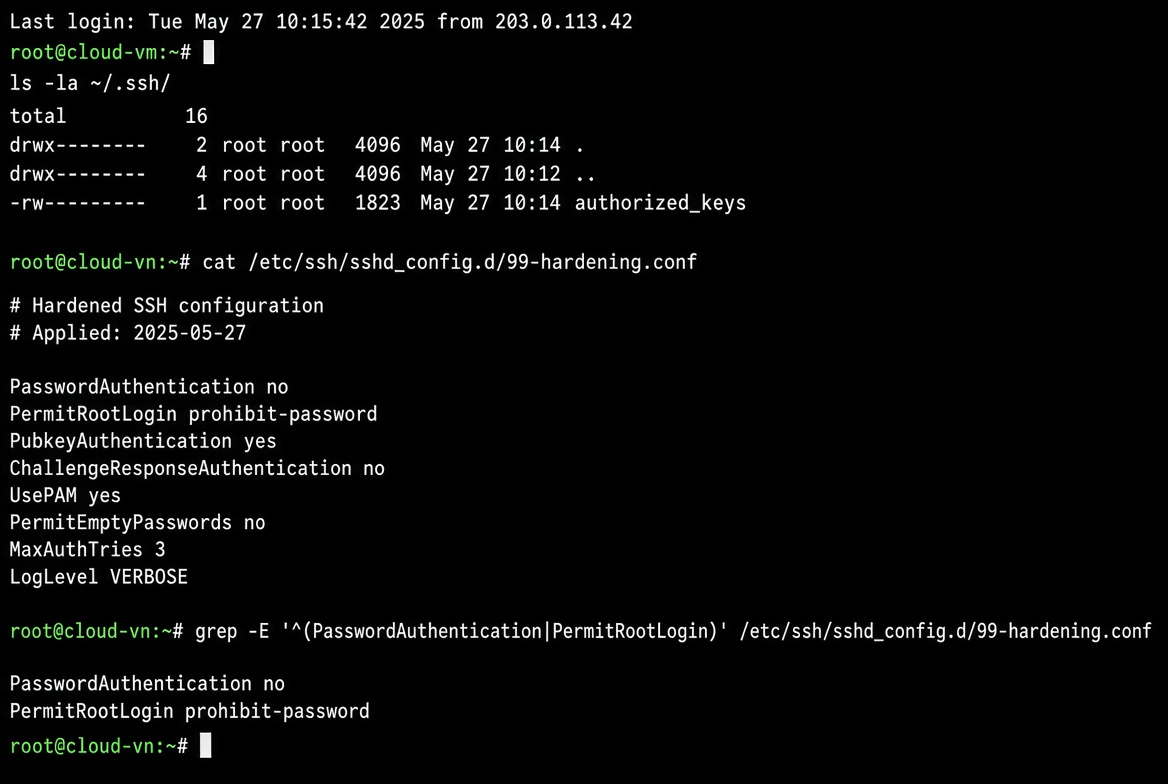
# /etc/ssh/sshd_config.d/99-hardening.conf
PasswordAuthentication no
PermitRootLogin prohibit-password
PubkeyAuthentication yes
KbdInteractiveAuthentication no
X11Forwarding no
AllowAgentForwarding no
AllowTcpForwarding no
ClientAliveInterval 300
ClientAliveCountMax 2
MaxAuthTries 3
LoginGraceTime 20

# /etc/ssh/sshd_config.d/50-port.conf
Port 2222

# /etc/ssh/sshd_config.d/60-allowusers.conf
AllowUsers deploy
Plus the fail2ban jail shown earlier, with ignoreip containing every network from which I legitimately manage the fleet.
After any change I run:
sshd -t
systemctl reload ssh
fail2ban-client status sshd
ss -tlnp | grep sshd
and then open a fresh connection before I close the old one.
What still goes wrong after the first week
- Someone opens a temporary security-group rule for 22 “just for debugging” and forgets to close it. fail2ban still helps, but the noise returns.
- A new team member’s key is added to authorized_keys but they are not in AllowUsers. They get “Permission denied” and assume SSH is broken.
- The box is restored from a snapshot that still has the old Port 22 configuration, while the live security group only allows 2222. Instant lockout.
- fail2ban’s bantime is left at the default (or set too short) and aggressive scanners just rotate IPs faster than the ban window.
None of these are fixed by more configuration. They are fixed by treating the security group, the host firewall, sshd, and fail2ban as one system and by having a documented break-glass path (provider console, or a second management IP that is always in ignoreip and AllowUsers).
Quick verification checklist I actually use
# 1. Only key auth
sshd -T | grep passwordauthentication   # must be no

# 2. Listening on the intended port only
ss -tlnp | grep sshd

# 3. fail2ban alive and not empty
fail2ban-client status sshd

# 4. Current user is allowed
# (try from a second account that should be denied)

# 5. Cloud security group matches the host port and source IPs
When all five are green, the SSH surface is in the state that has survived the first week and the first month for me. Everything after that is operational hygiene: rotating keys when people leave, reviewing the ignoreip list when office ranges change, and never leaving a temporary 22 rule open “just until tomorrow”.
One extra habit that has paid for itself: after the port change and fail2ban are live, I run a short external check from a different network (phone hotspot or a cheap VPS) to confirm that port 22 is closed and the new port only answers to the expected source. Internal tests can lie if you still have an open session or a local firewall hole.
# From an external host that should be denied on 22 and allowed on 2222 only from management IPs
nc -zv YOUR_IP 22
nc -zv YOUR_IP 2222
If 22 still answers, the security group or an extra network ACL is the culprit, not sshd.
If you are building many of these boxes, the same settings become a cloud-init snippet or a small Ansible role. For a single VM that needs to stay reachable by a small team, the manual sequence above is still the fastest way to get something that does not start screaming in the logs on day two.
The goal is not perfect SSH security. Perfect does not exist on a public IP. The goal is a configuration that stays coherent under normal operational drift and that fails closed instead of open when someone makes a mistake.